4. Diagnosis Section
This section provides access to the diagnosis codes for this accession.

|
Click the Ignore button to ignore the edit, to not show it on this accession again. Once you have added a Dx, or diagnosis, code, the edit grays out. If that code is not payable, which also means that the issue was not fixed, then it displays again on the accession after the next scrub processing run.
Click the Send Letter button to generate and autofax a letter to the ordering client to ask for missing information. Often the letter requests a Dx, or diagnosis, code but it can be used for other things as well. Scrubs display a Send Letter button when the response days column is set to anything other than 0 in the ScrubParameters table.
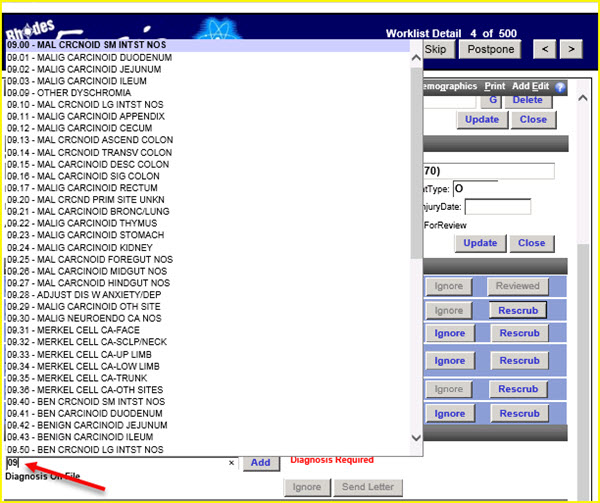
If you need to add a diagnosis, start typing a diagnosis code in the Dx Search field to see the options for a diagnosis code. If you want to enter an ICD9 diagnosis code, start typing '09' to see the list of ICD9 diagnosis codes from which to choose.
|
Selecting a code, by double-clicking on a diagnosis code in the list, places that code in the field.

|
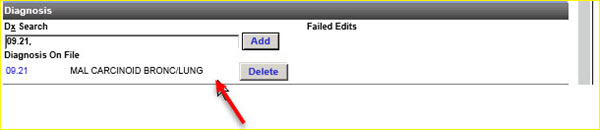
Click on the blue Add button to add this diagnosis to the accession.
|
Use the blue Delete button to delete this diagnosis from the accession if needed.
When a diagnosis is added to or deleted from the accession, a note is created by the system, for example:

|
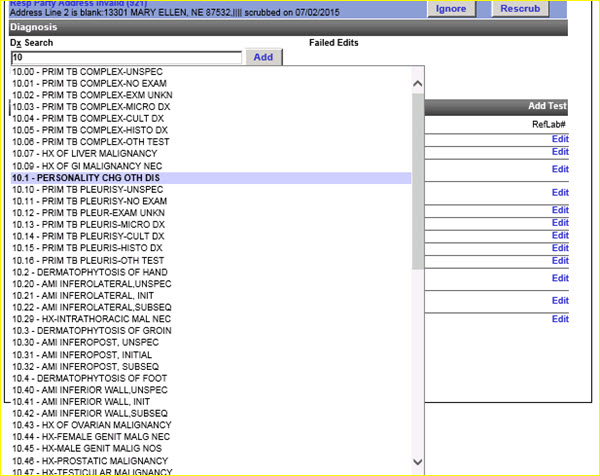
If you want to enter an ICD10 diagnosis code, start typing '10' to see the list of ICD10 diagnosis codes from which to choose.
|

| This document contains confidential and proprietary information owned by the Rhodes Group, Inc. This Information may not be downloaded, copied, or transferred, in any medium, either in whole or in part, except as allowed by the Rhodes Group. Copyright 2017, Rhodes Group Inc. | |
| Version 6.0, Release 1
Reference Manual |
Prepared by Rhodes Group
September 2017 |